# Chatting
When you are [connected to an API](/Usage/API_Connections/index.md), send messages to the AI by typing in the chat bar at the bottom of the screen. Then click **Send** or press Enter.

The AI will respond with a message that continues the conversation.

You can now:
* **Send another message**
* **Swipe the response**: Click the **Swipe** button on the message to generate a different response.
* **Edit the message**: Click the **Edit** button on any message to [edit the message content](#edit-message-content).
* **Message actions**: Click the **Message actions** button on a message for more [message options](#message-actions-panel) like [translation](../../extensions/Translation.md), image generation, and story branching.
* **Chat options**: Click the **Options** button next to the chat bar for more [chat options](#chat-options-panel) like author's notes and chat file management.
!!! Edit and swipe
If you wish you'd said something different, you can edit your message and then swipe the AI's response to get a new one.
!!!
!!! Keyboard shortcuts
You can also use the **Right** arrow key to swipe, and the **Up** arrow key to edit the last message in the chat. For more hotkeys, use the `/help hotkeys` [slash command](/Usage/Chatting/slashcommands.md) in the chat or check the [HotKeys](/Usage/Chatting/hotkeys.md) page.
!!!
## Message actions panel
Manage individual chat messages via the ellipsis (•••) button on the message.
To display these options for all messages in your chats, enable the [Expand Message Actions](/Usage/User_Settings/uicustomization.md#theme-toggles) setting in your user settings.
### Core Functions
* **Translate**: Convert message to different language
* **Generate Image**: [Create an image](/extensions/Stable-Diffusion.md) from message content
* **Narrate**: [Text-to-speech](/extensions/TTS.md) conversion
* **Prompt**: View the generation prompt and token usage
### Message Visibility
* **Included**: AI sees this message; click to exclude it
* **Excluded**: AI does not see this message; click to include it
### Content Management
* **Embed**: [Attach files or images](/Usage/Characters/data-bank.md#about-documents)
* **Checkpoint**: Create story checkpoint
* **Checkpoint Navigation**: Click to open checkpoint chat, Shift+Click to update
existing checkpoint
* **Branch**: Start alternate story path
* **Copy**: Copy message text
* **Edit**: Edit message content
## Edit message content
A compact panel of message manipulation tools that appears when you **Edit** a chat
message.
### Core Actions
* **Confirm**: Save message changes
* **Cancel**: Discard message changes
### Message Operations
* **Copy**: Duplicate message content
* **Delete**: Remove message
### Message Position
* **Move Up**: Shift message higher in chat
* **Move Down**: Shift message lower in chat
Note: Movement controls may be disabled based on message position in chat history.
## Chat options panel
Manage chat settings and operations via the **Options** button at the bottom left of
the chat interface.
### Display Controls
* **Close chat**: Exit current chat session
* **Toggle Panels**: Show/hide [interface panels](/Usage/index.md#control-panels)
### Generation Settings
* **[Author's Note](/Usage/Characters/Author's-Note.md)**: Custom context instructions
* **[CFG Scale](/Usage/Prompts/CFG.md)**: Adjust response creativity
* **[Token Probabilities](#token-probabilities-panel)**: View token generation stats
### Chat Navigation
* **Back to parent chat**: Return to main conversation
* **Save checkpoint**: Create story checkpoint
* **Convert to group**: Transform into [group chat](/Usage/Characters/groupchats.md)
### Chat Management
* **Start new chat**: Begin fresh conversation
* **Manage chat files**: [Chat file operations](/Usage/Characters/chatfilemanagement.md) such as import, export, and renaming
### Message Controls
* **Delete messages**: Select and remove multiple messages
* **Regenerate**: Create new response
* **Impersonate**: AI writes message as user
* **Continue**: Extend last message
Note: Some options may be hidden depending on context and chat state.
## Token Probabilities Panel
The Token Probabilities panel lets you look into the AI's sampling process for text generation. It shows you not just what the AI wrote, but what other options it considered at each point in the text.
To open it, click the **Token Probabilities** button in the **Chat Options** panel.
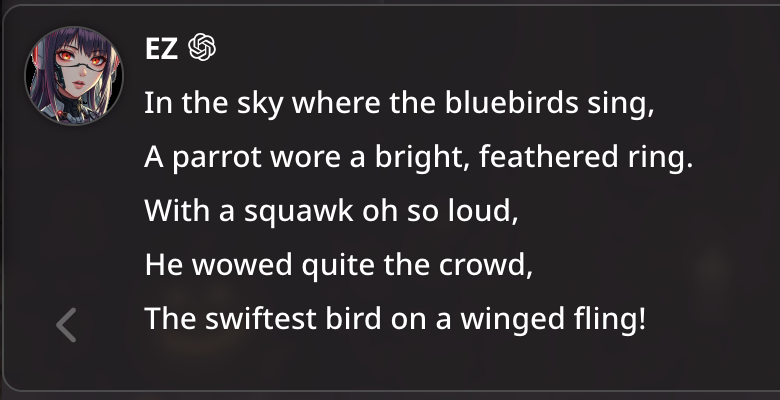{ width=500}
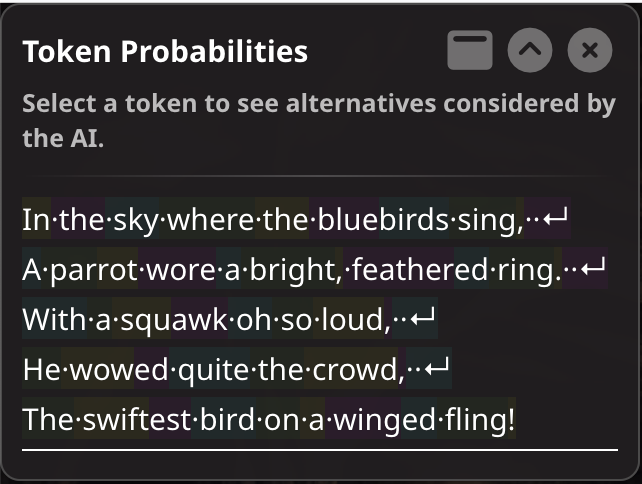{ width=500}
When you click any token (word, punctuation, or formatting character) in the generated text, the panel displays alternative tokens the AI considered at that position, along with their probability scores. This gives you insight into the AI's "thought process" and shows other directions the response could have taken. Looking at these alternatives can help you understand whether there were several likely options or a single clear choice.
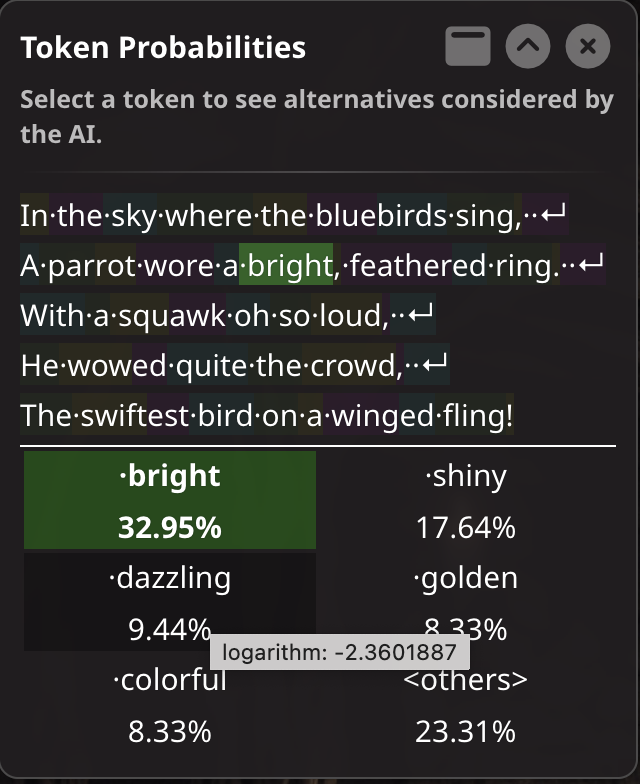{ width=500}
If you see a token that you think the AI should have chosen differently, choose an alternative and the message will regenerate from that point forward, potentially giving you a different response.
### Rerolling
If you change a specific token and regenerate the response, the part of the new response before the changed token will be the same as the original response. This part is shown in gray. Since it was not generated, there is no probability information for this part.
You may like to see other responses that could have been generated based on your alternative token.
You can click the gray portion to "reroll" the generation, giving you a new variation of the text. Clicking any part of the gray portion will keep the entire gray portion and regenerate the entire white/tinted portion.
Holding Ctrl while clicking a token in the gray portion will retain the gray portion up to the clicked token and regenerate the rest of the text. Your choice of alternative token can not be kept in this case.
### Controls
**Token Display**:
* Generated text is split into individual tokens
* Each token is interactive, click a token to see alternatives considered by the AI
* Tokens are tinted as a visual aid but this does not indicate probability
* Special characters (spaces, newlines) are visibly marked
**Token Selection**:
* Click a token to view alternatives
* Click an alternative to replace the token and regenerate the response
* Hover over a token to see its raw log-probability score
**Window Controls**:
* Drag handle for panel repositioning (MovingUI only)
* Maximize/restore panel size
* Expand/collapse panel content
* Close panel
### Availability
You must select **Request token probabilities** in [User Settings](/Usage/User_Settings/index.md#chatmessage-handling) to enable this feature.
Token probabilities are only available for the most recent message, and are not saved to the chat. If token probability information is no longer available for a message, the panel will display a message indicating this.
Token probabilities are not available when using Smooth Streaming.
Token probabilities are not available from all APIs. If you are using an API that does not support token probabilities, the panel will open but will not display any information.
#### Text Completion
* **LlamaCPP**: Available
* **Text Generation WebUI** (oobabooga): Available
* **TabbyAPI**: Available
* **NovelAI**: Available
* **KoboldCPP**: Available
* **Ollama**: Appears to be unavailable
* **OpenRouter Text**: Appears to be unavailable
#### Chat Completion
* **OpenAI** or **Custom**: Available, but rerolling is not supported
* **Anthropic**: Appears to be unavailable
* **Google AI Studio**: Appears to be unavailable
* **OpenRouter Chat**: Appears to be unavailable